Set up a screen
☑️ Location Owners
To start working in the POS, you need to link your screens (phones, tablets) to the location. Also, some of the settings on the screens page allow you to tune this screen and use it the way you need.
Note: Before linking a screen, you need first to install the unTill Air app. For more information on how to install the app, refer to this page.
Link a screen to the location
The steps of linking a screen depend on the method you want to use and the capabilities of your device. If you want to link the screen with a camera, you can do this through the QR code. Otherwise, you can link it by code or through the link.
To link your screen to the location, please follow these steps:
- QR code
- By Alpha Code
- Through the link
Follow the steps described in the Back Office on any other device, you can use a PC, laptop, phone, or tablet as a screen to read the QR code.
Follow the steps described in the Back Office on any other device, you can use a PC, laptop, phone, or tablet as a screen to get the code.
Follow the steps described in the Back Office on the same screen you want to link. Open the browser, log in to the Back Office of your location, and proceed.
Note: Before linking a screen through the link, please make sure that the “Open links in apps” setting is enabled in your browser so the link works properly.
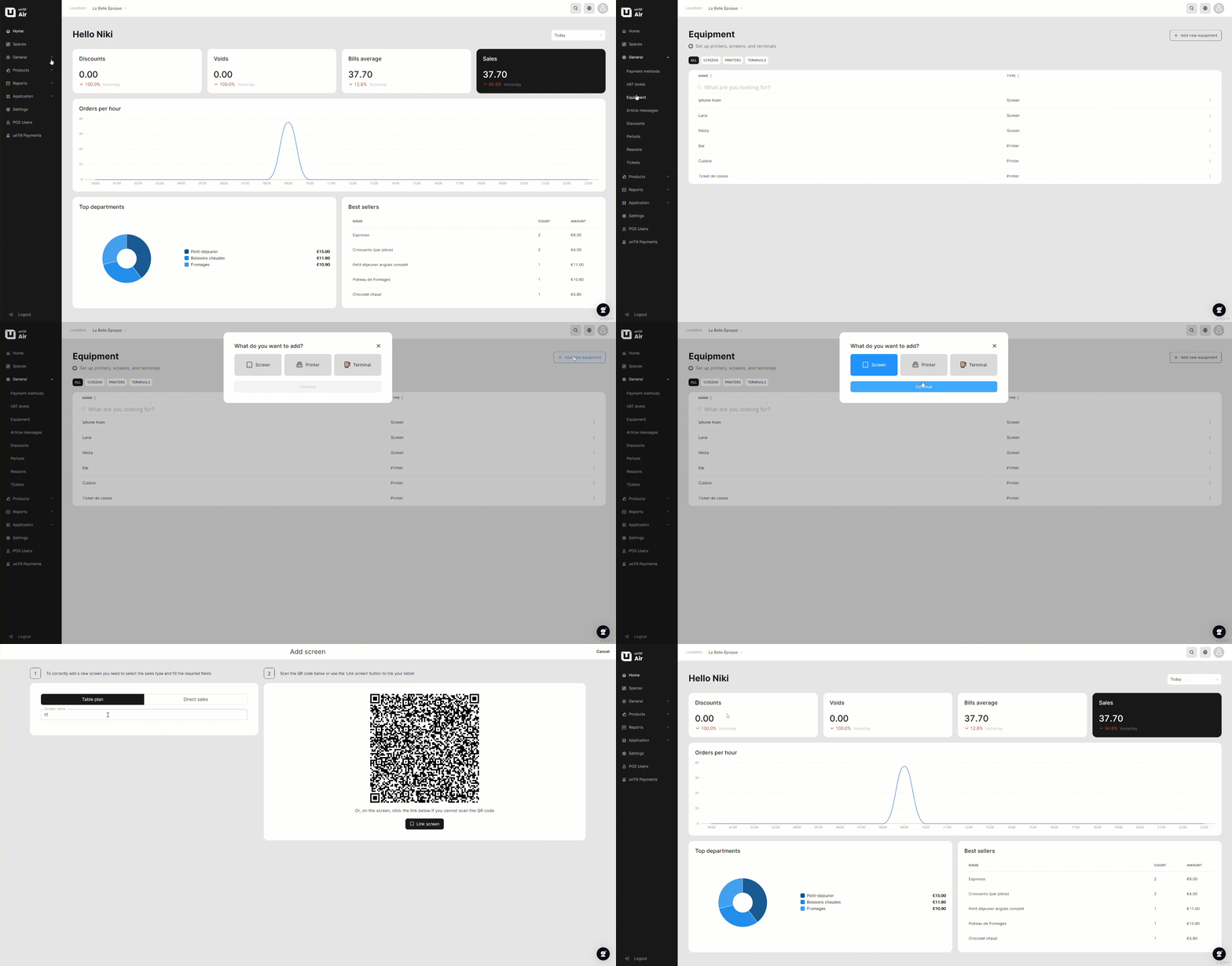
- Navigate to Equipment > Screens in the Back Office and add a screen.
- Choose the sales mode for your screen, whether Table plan or Direct sales.
Note: Different sales modes (Table plan and Direct sales) are available only in the case of the Food & Drinks location type selected when onboarding (mostly for hospitality businesses). If you selected the Retail location type, then you will not see a choice between different sales modes as Table plan is not available in Retail.
For more information regarding the sales modes in unTill Air, refer to this page.
- Give a name to your screen.
For more information regarding the cash drawer in the settings of the screen, refer to this page.
The last step depends on the method of linking a screen you use:
- QR code
- By Alpha Code
- Through the link
- On the screen, open the unTill Air app.
- Tap on the 'Link by QR' button.
Note: Before using a camera for reading a QR code, you need to allow the app to use the camera. Without this permission, it's impossible to link the screen using a QR code.
- Using the camera, scan the QR code displayed in the Back Office of another device.
- On the screen, open the unTill Air app.
- Tap on the 'Link by Alpha Code' button.
- In the Back Office, click 'Link by code' and enter the code displayed on your screen into the pop-up and click 'Submit'.
In the Back Office on the screen you wish to link to the location, tap on the 'Link screen' button. Once it's done, your screen is linked to the location.
Now, your screen is linked to the location and you can run the POS on it.
Tip: As long as you have the payment terminal added to the location, you can assign it to your screen in the pop-up that appears after the linking of the device or from the screen editing page. For details on how to do this, refer to this page.
Manage screen settings
When adding a screen in unTill Air, only essential settings are shown. By default, digital bills are the primary method for delivering bills to customers, but this can be adjusted in the Back Office if needed.
For more information about managing screen settings, refer to this page