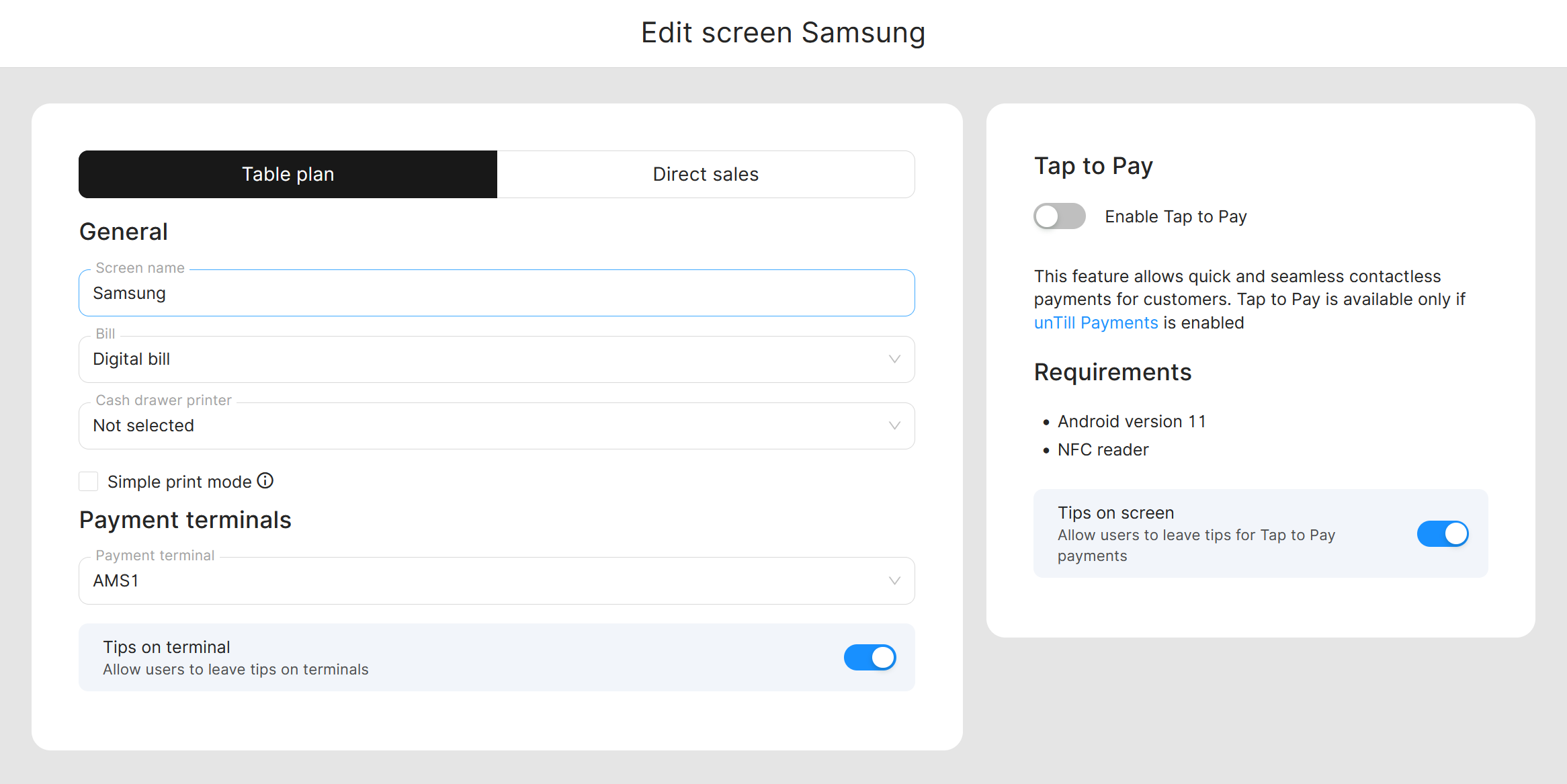
Gérer les paramètres de l'écran
☑️ Propriétaires de l'emplacement
Lors de la création d'un écran dans unTill Air, seuls les paramètres les plus importants sont affichés. Les factures numériques sont activées par défaut comme principal moyen de fournir les factures aux clients.
Une fois l'écran créé, vous pouvez modifier ses paramètres dans le Back Office. Pour cela, accédez à Équipement > Écrans et double-cliquez sur la ligne de l'écran. Les paramètres de l'écran s'ouvrent et vous pouvez ajuster les options propres à cet écran.
Ici, vous pouvez modifier les paramètres des factures, attribuer un tiroir-caisse, une imprimante et des terminaux de paiement à cet écran particulier, ainsi que configurer d'autres options propres à l'écran.
Le paramètre de facture définit si vous travaillez avec des factures numériques, des factures imprimées ou une combinaison des deux approches.
- En sélectionnant l'option 'Facture numérique', une fenêtre contextuelle avec un code QR apparaît après chaque transaction PDV, ce qui permet au client de consulter la facture sur son téléphone. Les clients peuvent également recevoir la facture par e-mail en saisissant leur adresse dans le champ prévu à cet effet. Avec cette option, vous pouvez toujours imprimer la facture tant qu'au moins une imprimante de factures est configurée dans l'emplacement.
- L'option 'Ne pas afficher le code QR' désactive la fenêtre contextuelle avec le code QR après chaque transaction PDV et désactive également l'impression automatique des factures. Toutefois, vous pouvez toujours imprimer la facture manuellement si nécessaire, tant qu'au moins une imprimante de factures est disponible dans l'emplacement. Pour cela, utilisez le bouton 'Imprimer la facture précédente' dans le PDV. Vous le trouverez sur l'écran d'accueil (Plan de salle) ou sur l'écran de contrôle (Vente directe).
- En sélectionnant 'Imprimer sur (nom de l'imprimante)', toutes les factures seront imprimées automatiquement sur l'imprimante sélectionnée après chaque transaction PDV.
Pour plus d'informations sur la manière de combiner ces approches et de travailler avec les factures numériques en général, consultez cette page.
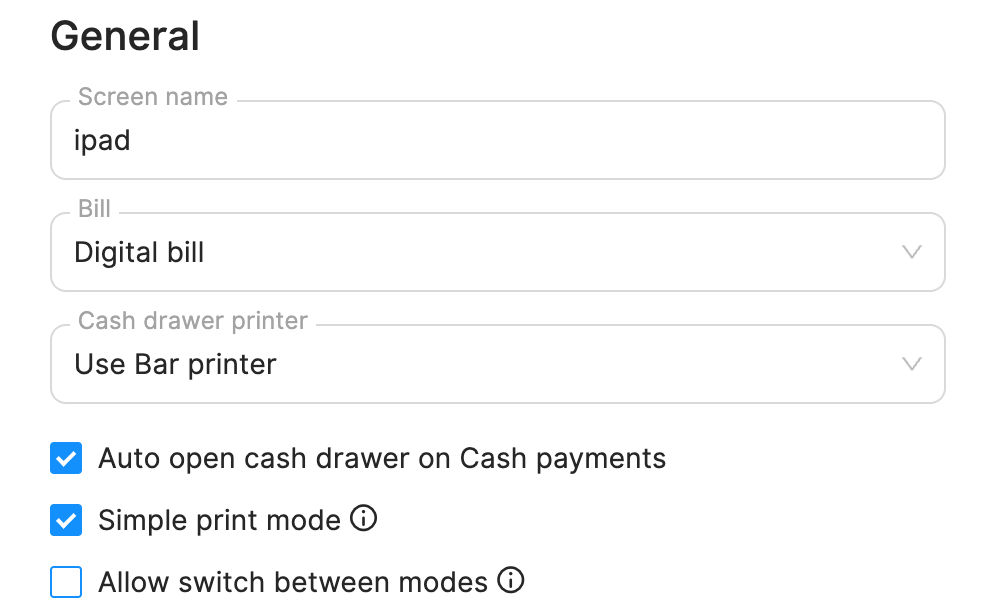
Dans ces paramètres, vous pouvez également configurer le tiroir-caisse pour cet écran. Dans le champ Imprimante du tiroir-caisse, sélectionnez une imprimante à laquelle connecter le tiroir-caisse. En choisissant Utiliser (nom de l'imprimante), le tiroir-caisse sera lié à l'imprimante sélectionnée pour cet écran spécifique.
Une fois l'imprimante du tiroir-caisse sélectionnée, l'option 'Ouvrir automatiquement le tiroir-caisse lors des paiements en espèces' devient disponible. Lorsqu'elle est activée, le tiroir-caisse s'ouvre automatiquement lorsqu'un paiement en espèces est terminé.
Vous pouvez également activer le 'Mode d'impression simple', qui utilise une interface d'impression simplifiée. La facture est alors moins détaillée, mais la vitesse d'impression peut être améliorée.
L'option 'Autoriser le changement de modes' permet aux utilisateurs de passer directement du mode Plan de salle au mode Vente directe pendant que l'application est en cours d'exécution sur l'écran.
Pour plus d'informations sur l'utilisation de plusieurs modes de vente, consultez cette page.
Terminaux de paiement et paramètres des pourboires
Vous pouvez attribuer les terminaux de paiement appropriés à cet écran si nécessaire. Dans le champ 'terminaux', sélectionnez le terminal souhaité pour cet écran.
Pour plus d'informations sur les terminaux de paiement, consultez cette page.
Si vous utilisez unTill Payments et activez la fonctionnalité Terminal tips, un bouton Pourboires sur terminal est disponible pour chaque écran auquel un terminal de paiement est attribué. Cela vous permet de choisir si les clients sont invités à laisser un pourboire sur le terminal de paiement pour cet écran spécifique.
Pour plus d'informations sur l'activation et l'utilisation de Terminal tips dans unTill Air, consultez le manuel unTill Payments.
Vous pouvez également activer Tap to Pay pour un écran, ce qui permet aux clients d'effectuer rapidement des paiements sans contact avec leurs appareils. Vous pouvez activer les pourboires sur un écran avec 'Tap to Pay' en activant l'option 'Pourboires à l'écran'.
Veuillez noter que pour utiliser Tap to Pay, votre compte Payments doit être configuré. Pour plus d'informations sur la configuration d'un compte unTill Payments, consultez cette page.