Switching Between Sales Modes
✅ POS Users
In unTill Air POS, you can switch between Direct Sales mode and Table view using the same device.
To use this feature, the 'Allow switch between modes' permission must be enabled for the relevant screen in the Back Office.
For more information about managing screen settings, refer to this page.
Once this functionality is enabled for a screen in the Back Office, the following buttons will appear in the POS on the Home and Order screens:
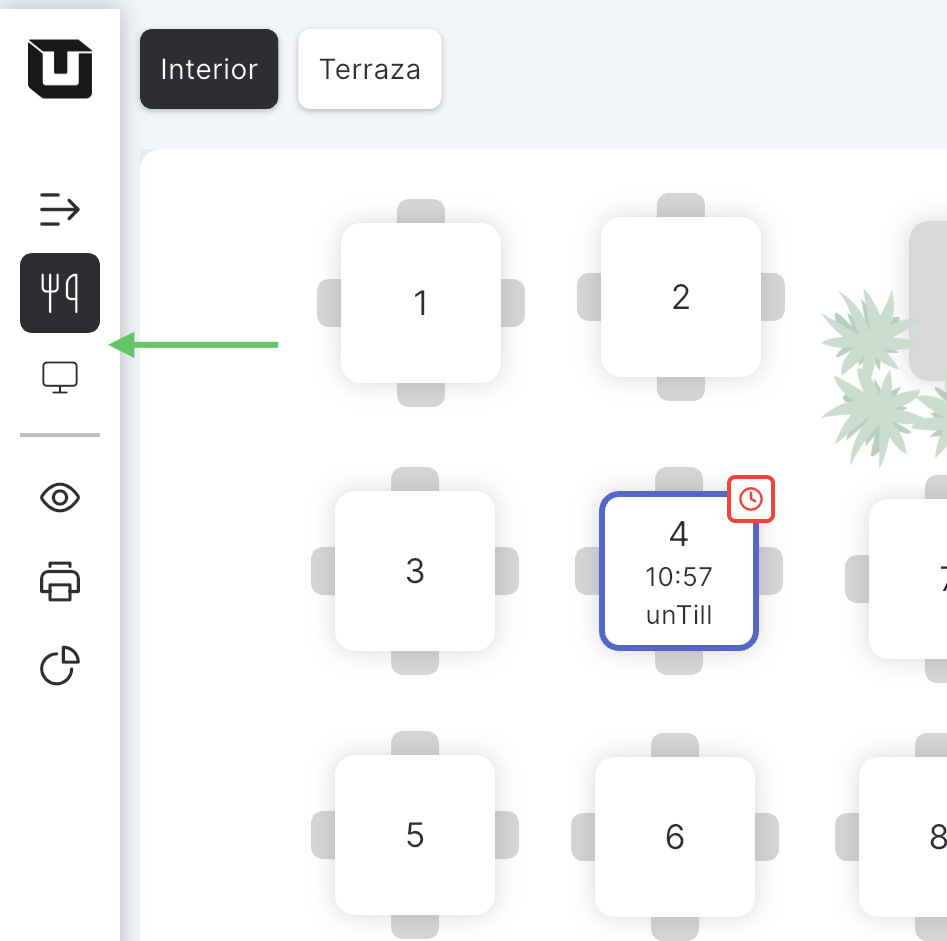
In Tables view mode, you can switch to Direct Sales from both the Home and Order screens. However, if you add articles without confirming the order, they will be removed when you switch to Direct Sales mode. These buttons become not available during the payment stage.
Tap the button with the monitor icon to switch to Direct Sales mode, and tap the button with the fork and knife icon to switch to Table view mode.
Note: To switch from Direct Sales to Table view mode, make sure the Direct Sales order is empty. Otherwise, you will not be able to switch modes.