Manage printer settings
Who can use this feature?
☑️ Location Owners
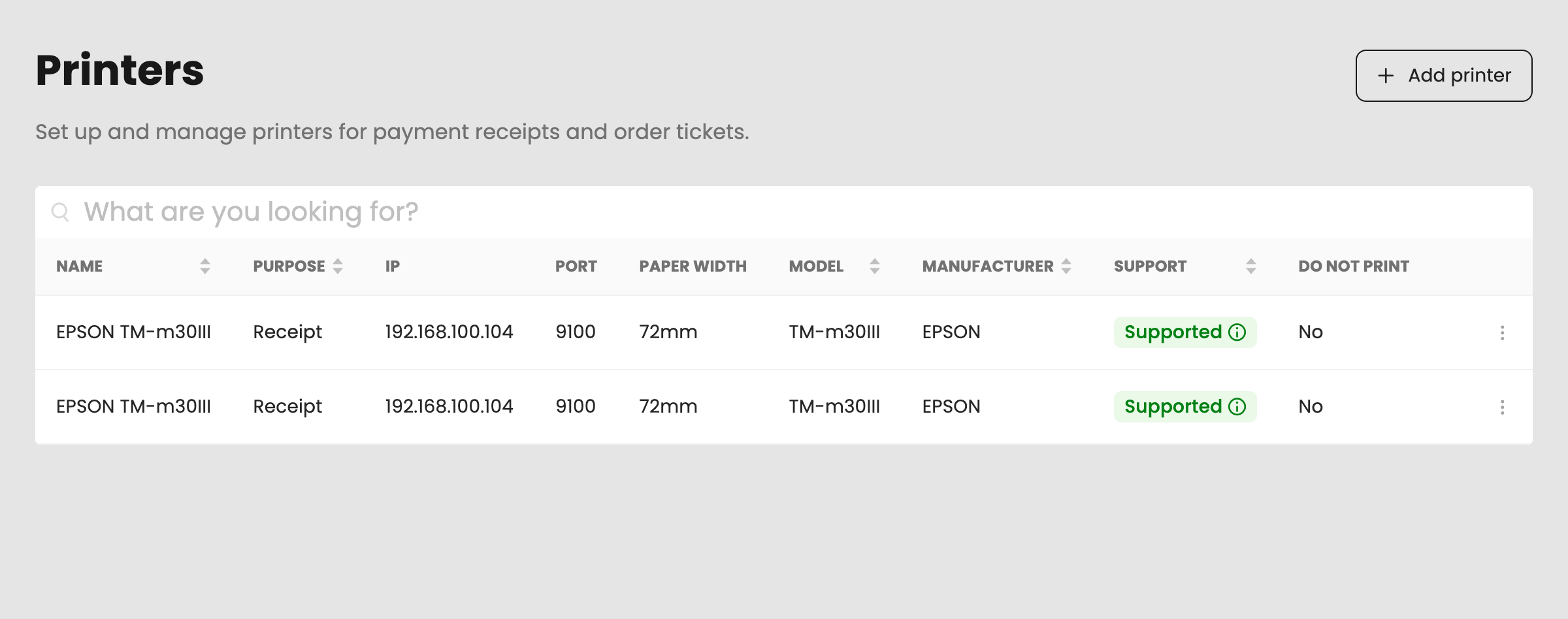
You can see the following details for each configured printer:
- Name – The name assigned to the printer in Back Office.
- Purpose – The printer's assigned function, such as printing receipts or order tickets.
- IP address – The printer's current network IP address used for communication.
- Port – The network port used to connect to the printer.
- Paper width – The configured paper width for the printer.
- Model – The detected printer model.
- Manufacturer – The printer manufacturer.
- Support – Indicates whether the printer model is officially supported by unTill:
- Supported – The printer is officially supported.
- Possibly supported – The printer may work, but official compatibility has not been verified.
- Unknown – The printer may work, but its model could not be detected.
- Do not print – Indicates whether printing is disabled for this printer.
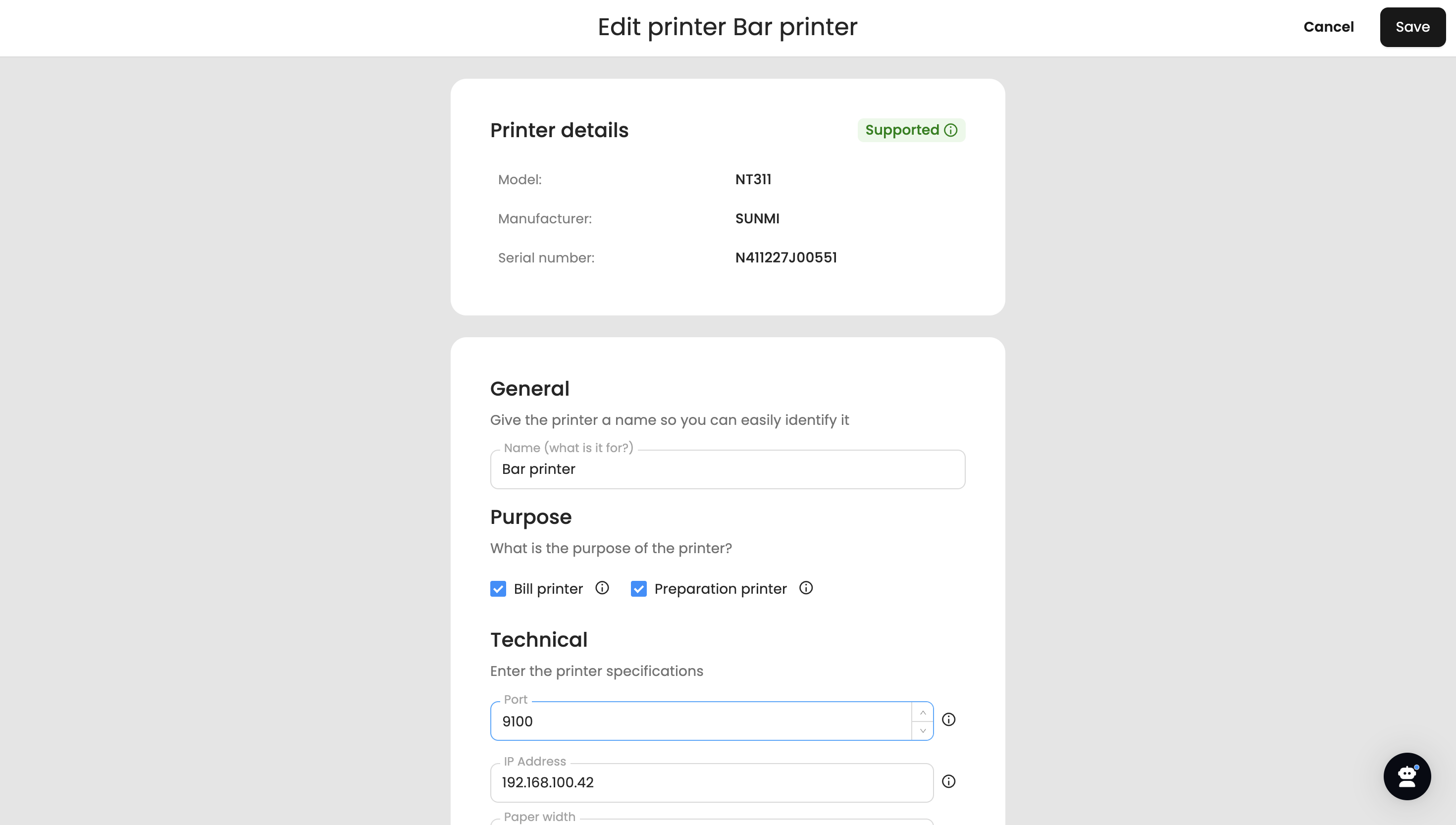
To edit the printer settings, click the 'Edit' button next to the printer you want to modify. You can change the printer's name, purpose, and technical details such as Port, IP address, and Paper width. After making the necessary changes, click 'Save' to apply the new settings.
info
The POS automatically checks configured printers when it starts. If it detects that a known printer's IP address has changed, it updates the printer details in Back Office automatically. Where available, additional technical details such as the printer model and serial number may also be updated. Existing printer assignments and routing remain unchanged.